


Labels
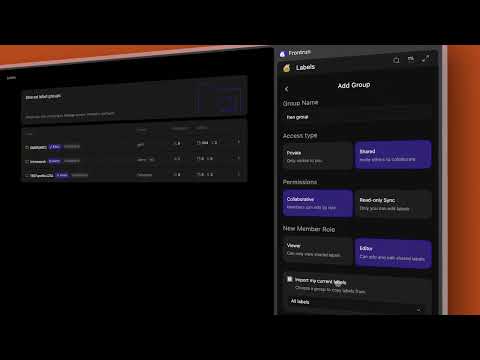
How to Label Wallets
Label any wallet in one click — from the extension, X, or a trading site — make your labels show everywhere you trade, organize them into groups, share a group, and export when you need to.
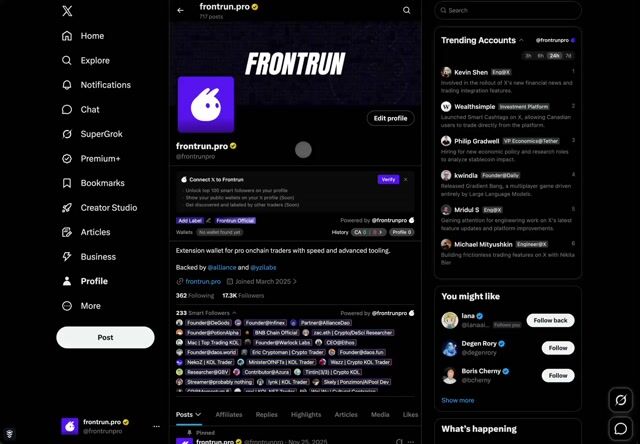
X Account Integration
Connect your X account to unlock your top 100 Smart Followers and surface your wallet intelligence on X.

Import Wallet Labels
Bulk-import hundreds of wallets, groups and labels in seconds — auto-import from Axiom, GMGN and Solscan.
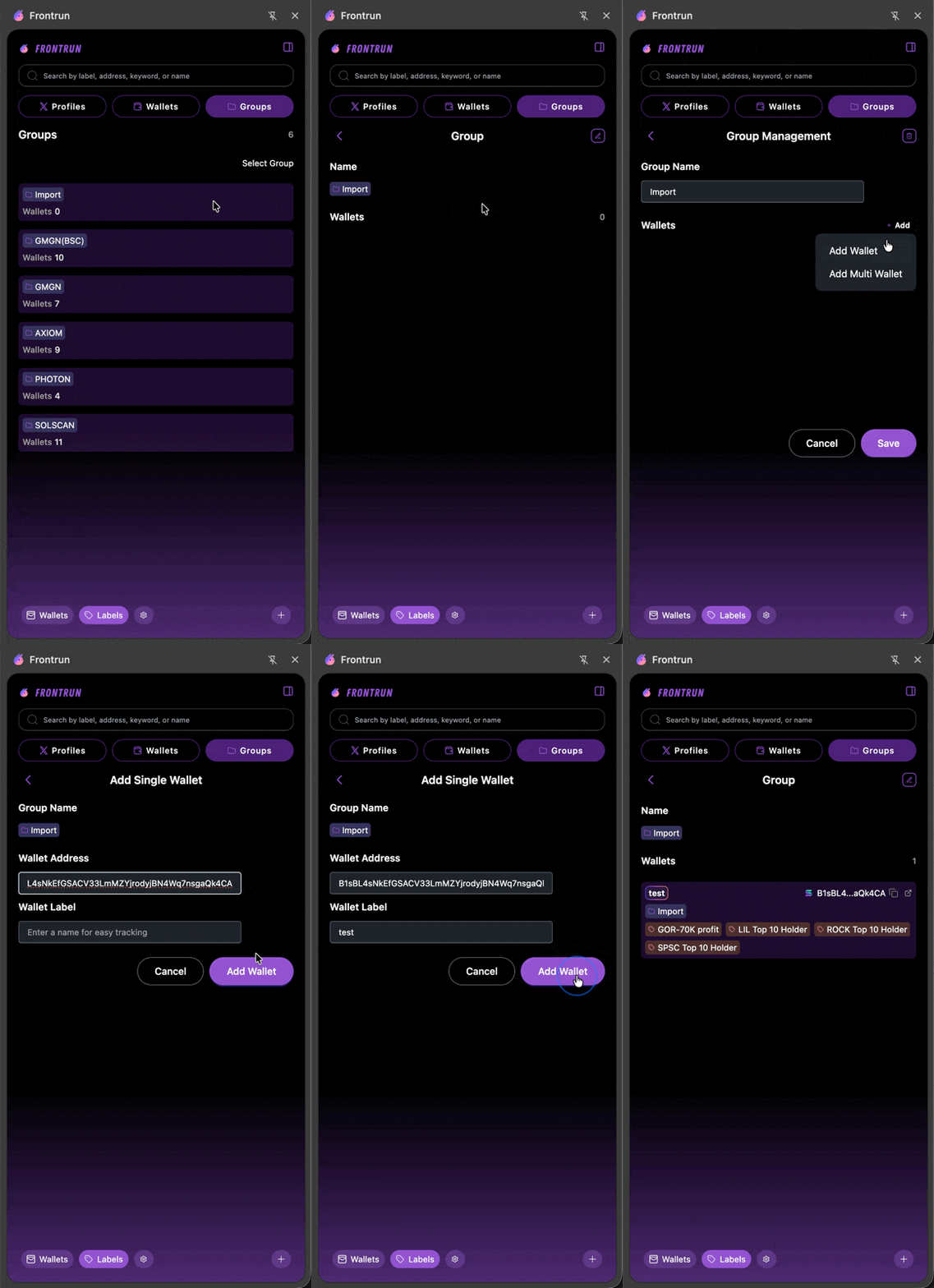
Import Labels Manually
Add wallets to a group by pasting addresses — one or many at once — using the format `address: label`, one per line.
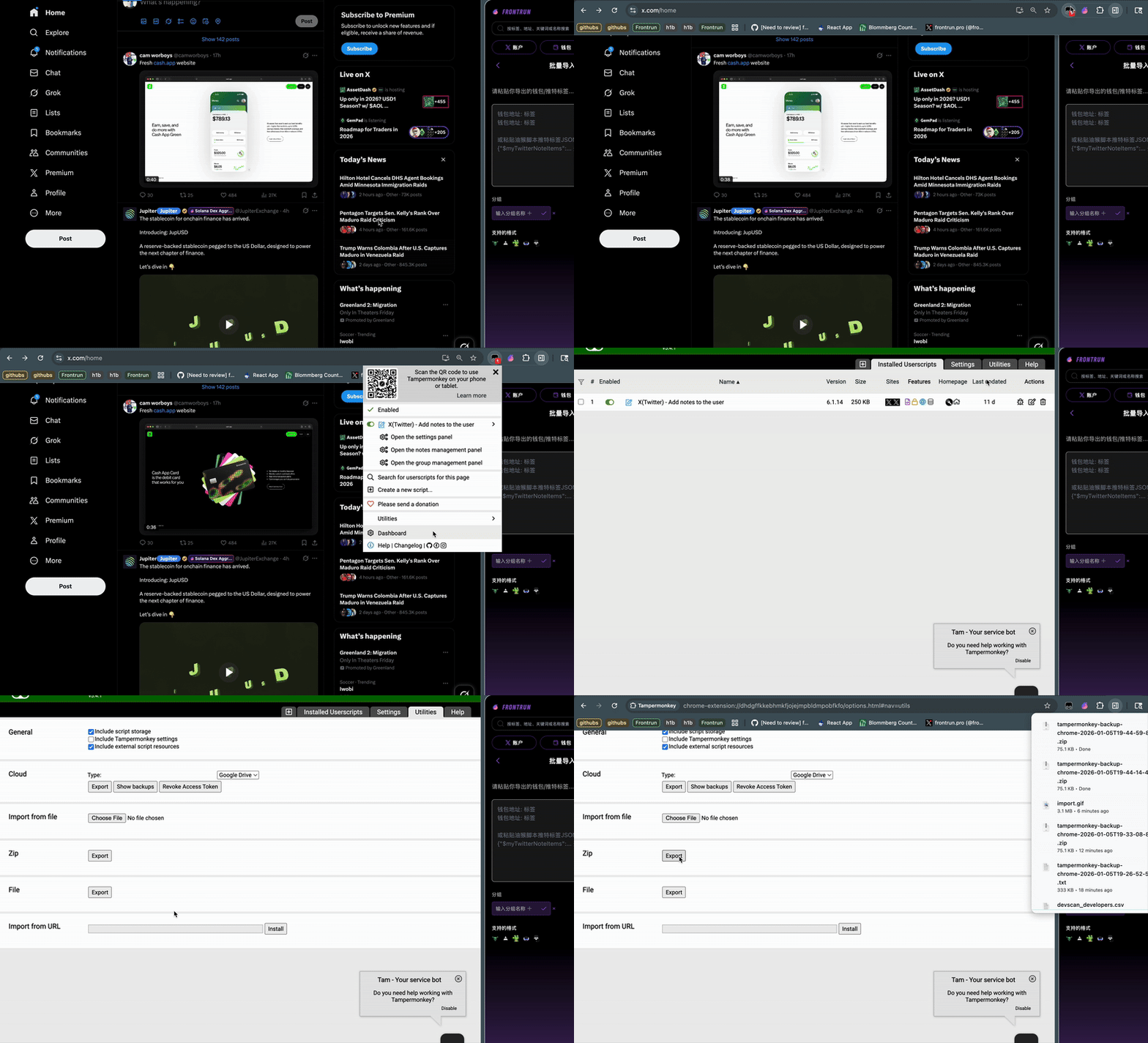
Import Tampermonkey Labels
Export your Tampermonkey labels to a zip, copy the JSON, then batch-import them into Frontrun's Labels tab.
Choose a Label Style
Switch between three label styles in Settings to match how you want labels to look.
Label Display Settings
Toggle Frontrun labels on or off for your timeline and followers/following lists.
First Followers (Silver+)
See who followed any X account first. Click the First Followers pill on a profile to view the earliest 20 followers with bios, follow dates, and follower counts.
View More Smart Followers (Silver+)
Expand the Smart Followers list on any X profile — tap View More to see beyond the default preview.
Previous Username History on X
Check an X account's past @handles from the inline chip on its profile.
Polymarket Wallet Labels
Search 4.1M indexed Polymarket wallets directly from the side panel.
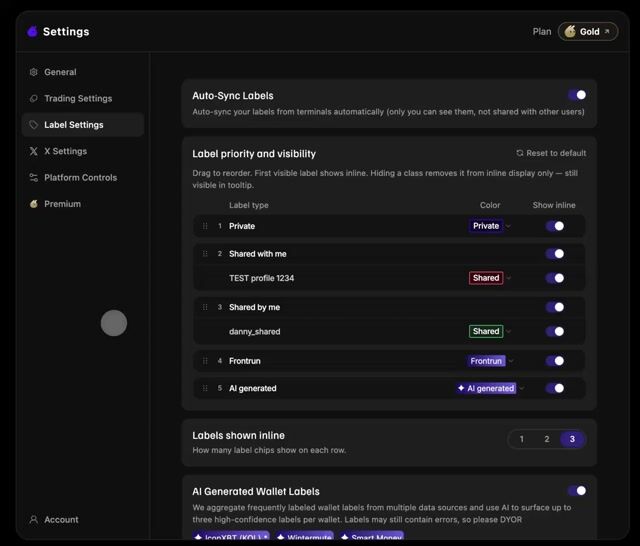
AI Label Priority
Surface the most relevant wallet label first — AI labels follow a priority order.
Frontrun Premium
Unlock higher usage limits, a Gold badge, wallet + X label export, more X-profile labels, advanced label controls and API access.
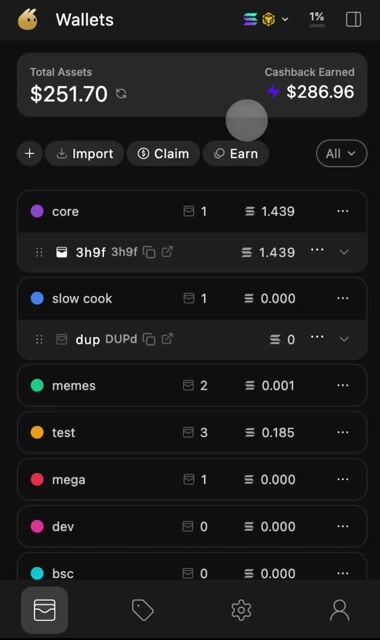
Check Your Plan Usage
See your tier, weekly credit usage and upgrade options from the plan usage pill in the sidepanel top nav.
Augmented X hover cards
Hover any X profile to see Smart Followers, CA history and name-change history in one card. Enable in X Settings.
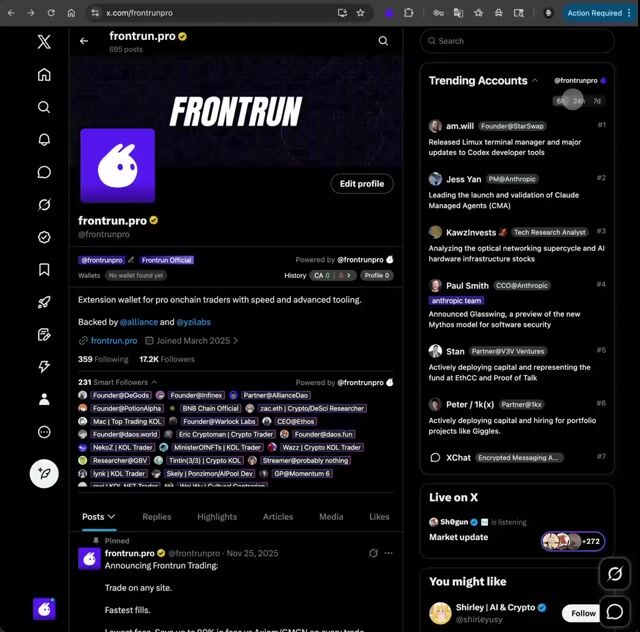
Trending Now Panel
Open the Trending Now panel in your X sidebar to see crypto wallets and accounts ranked by relevance — each with a one-line reason, filterable by 6h / 24h / 7d.
Show or Hide AI Wallet Tags
Turn AI wallet tags on or off globally from Settings → Labels.
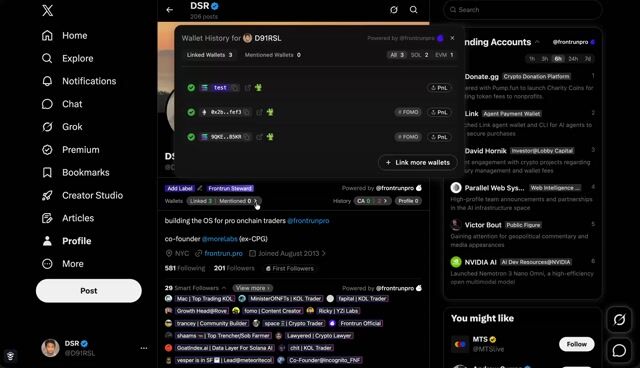
Link Wallets from X
Open the Public Wallets modal straight from new entry points on X and link your wallets without leaving the tab.
Refresh CA History
Refresh the Historical CA modal on demand — clicking a tweet re-checks whether it was deleted so the list stays accurate.
Toggle Axiom Twitter Labels
Enable or disable Twitter profile labels on Axiom Twitter Alerts from settings.
Setup & Help

How to update the Chrome extension
Update to the latest version in just a few clicks.

How to find your version number
Check which version you’re on directly in the extension

How to read wallet icons
Understand what each icon next to a wallet address means

How to view Axiom side-by-side on Arc browser
Click a label, split the view, trade without switching tabs

Restrict Site Access
Limit Frontrun to specific sites from chrome://extensions — add the required domains under “On specific sites.”

Disable a Platform
Turn off the Frontrun overlay on specific platforms in Settings while keeping it active everywhere else.

View Translations on GMGN
See Chinese → English token name and symbol translations automatically on the GMGN BSC page.

Fix Login Issues
Can't log in? Check your Chrome version, clear the relevant cookies, and re-authenticate.

Fix Frequent Logins
Asked to log in repeatedly? Allow Frontrun's cookies in chrome://settings/cookies so your session persists.

Fix: Labels Not Showing
Labels missing on a platform? Inspect the service-worker network requests to pinpoint what's blocking them.

Fix Slow Loading
Diagnose slow loads by checking the api.frontrun.pro/health request timing in Chrome DevTools.
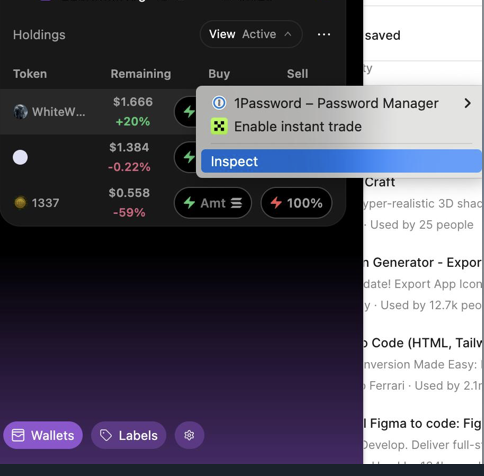
Export Console Logs
Open the extension, Inspect, and export console logs to share with support when reporting an issue.
Getting Started

Wallet Basics
Learn how Frontrun trading wallets work — create, fund, group and manage them.

Get Started
Install Frontrun, fund a wallet, and place your first trade across Solana, BNB Chain, or TON.
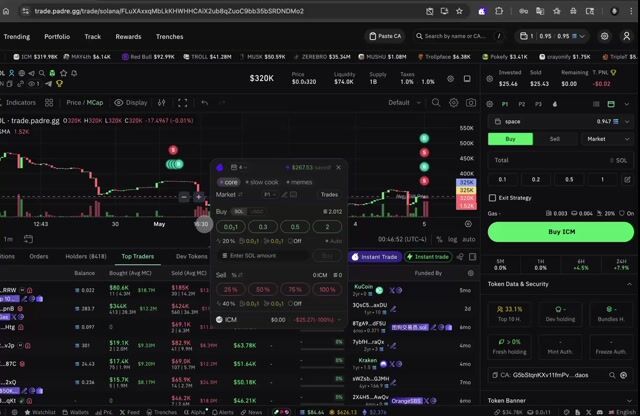
Create Wallets and Groups from the Wallet Selector
Create SOL/BSC wallets and wallet groups directly from the wallet selector without leaving the trading flow.
Buy & Sell
Place a Trade
Place your first buy or sell from the Instant Trade panel — pick an amount, choose a wallet, and execute.

Quick Buy
Buy a token in one click, straight from the token feed. Every buy executes instantly through Frontrun with your preset trade settings.
.gif?alt=media&token=78b2053f-8d9e-4844-8cea-c03ef831e973)
Trading Settings
Frontrun trading settings control both how trades execute and how the trading panel behaves. You can update settings centrally or inline while trading.
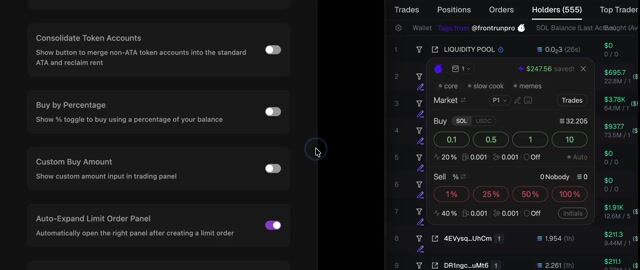
Buy by Percentage
Buy using a percentage of your wallet balance instead of a fixed amount. Toggle the % button in the buy panel to switch modes. Enable in Settings.
Custom Buy Amount
Type a custom SOL amount directly in the trading panel instead of using a preset.
Sell a live % of your balance
Set sell limit orders and auto-trade to sell a percentage of your live balance at trigger time, so adding to the position later stays fully covered.
Independent Buy/Sell Presets
Set separate presets for buy and sell, and cycle each side with its own hotkeys. Enable in Settings → Independent Buy/Sell Preset.
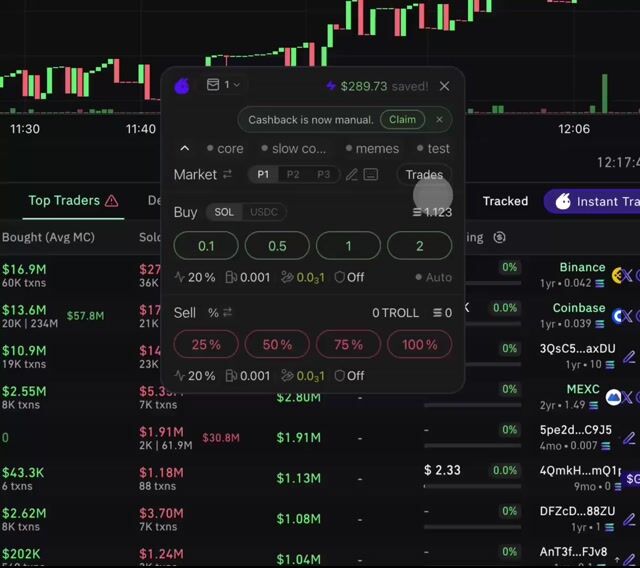
Edit QuickBuy / QuickSell Slots
Set each QuickBuy and QuickSell slot to a SOL amount or a percent of balance, with independent 3- or 4-button layouts for buy and sell.
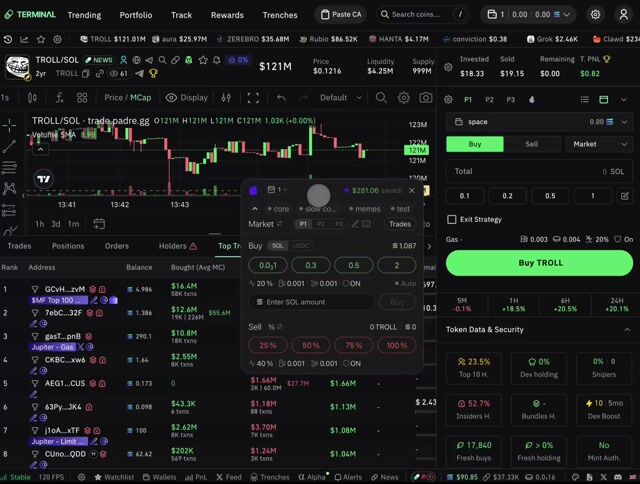
Buy Variance & TX Delay Sliders
Dial in Buy Variance and Transaction Delay with sliders — drag for a rough value or type an exact one — and set buy and sell delays independently.
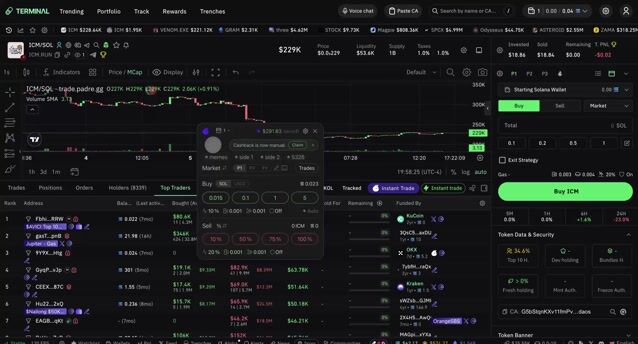
Trade in USDC, Priced in SOL
Trade with your USDC balance while every amount — presets, custom inputs, balances and limit orders — shows in SOL. Opt in under Trading Settings.
Orders & Automation

TP / SL / TSL / Dev-Sell / Migration-Sell
Automate entries and exits with price-based strategies — take-profit, stop-loss, trailing stop, dev-sell and migration-sell — from the Instant Trade panel.

Chart Lines
Chart lines appear automatically when you create a limit order or set an auto-trade strategy (TP/SL) on a token.
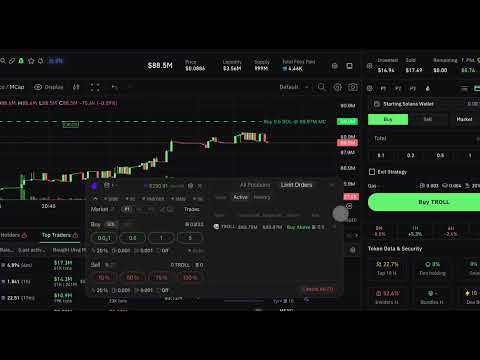
How to Set Limit Orders
Set limit orders on Frontrun any way you like — right-click the chart, the Trading Panel, or AutoTrade. Solana and BNB Chain.
Dev Sell → Buy Auto-trade
Set an auto-trade strategy that fires a buy the moment a token's dev sells.
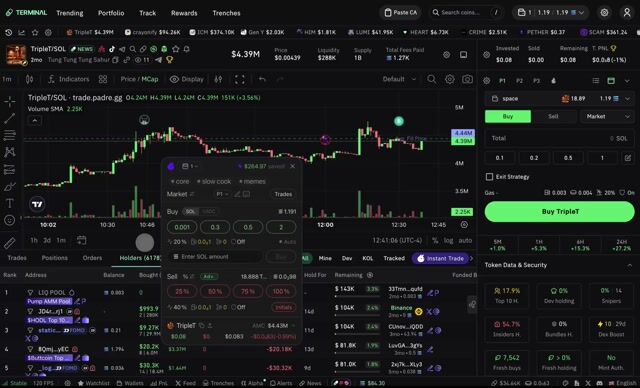
TP/SL on Existing Positions
Set Take Profit and Stop Loss from the Adv. modal when applying auto-trade to a position you already hold.
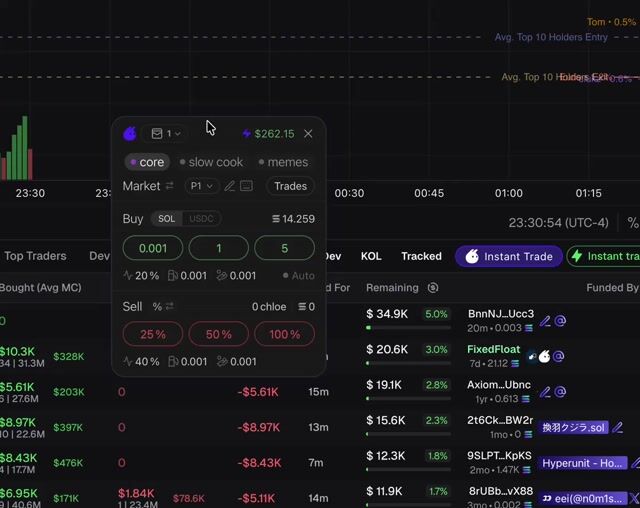
TP/SL Presets
Save up to three named TP/SL templates and apply them in one click when setting up a trade.
TP/SL on Limit Buys
Attach TP/SL strategies to your limit buy orders, right from the trading panel.
Trailing Stop Loss
Set trailing stop losses from the trading panel with offset %, sell amount and activation price — visualized as a chart line with tooltip details.
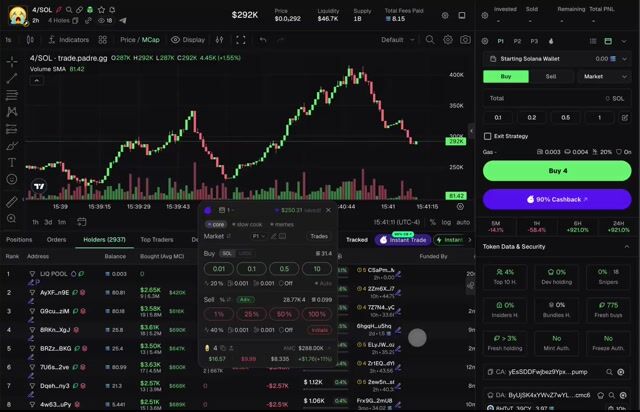
TSL on Current Position
Attach a trailing stop loss to a token already in your portfolio — no new buy order needed.
Dev-Sell Reaction on a Position
Attach an auto-sell or auto-buy reaction to a dev-wallet sell on a position you already hold, from the Adv. tab. Solana only.
Migration Sell to Existing Position
Use “Apply to Position” to set a migrate-sell on pre-migration pools.
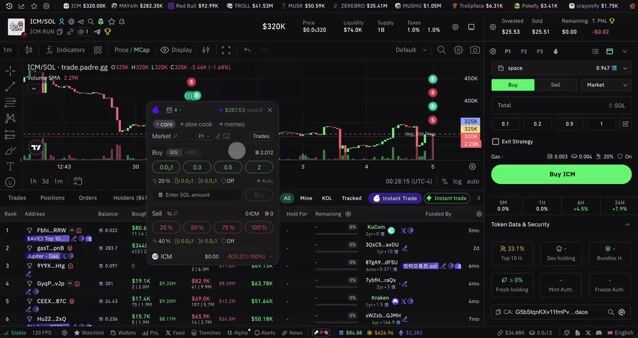
Pinned Wallets for Auto-Trade Presets
Pin specific wallets to an Auto-Trade preset so it only trades with those wallets; leave it empty to use your active wallets.
Fast Execution
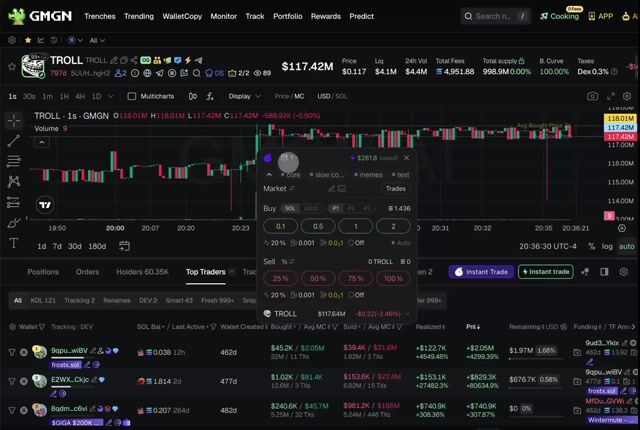
TURBO Mode
TURBO is Frontrun's fastest execution path on Solana. Enable it per wallet to race each trade down multiple relays at once — the fastest possible fill, with built-in MEV protection and no extra fee.
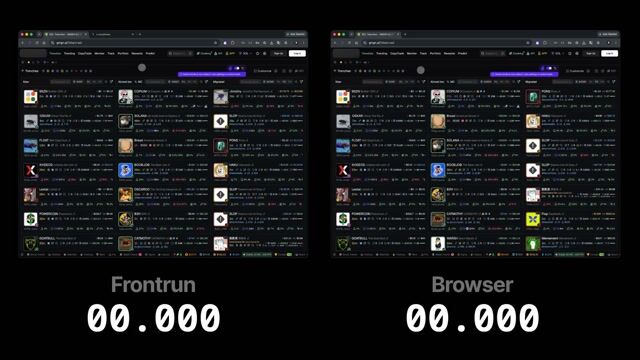
Fast X Post Opening
Open X posts from token pages without waiting for a cold X tab. Turn it on in Settings -> X Settings, then click X links on supported token pages: GMGN, Axiom, Padre, DexScreener, Debot, Trojan, Photon, XXYY, BasedBot, and fomo.
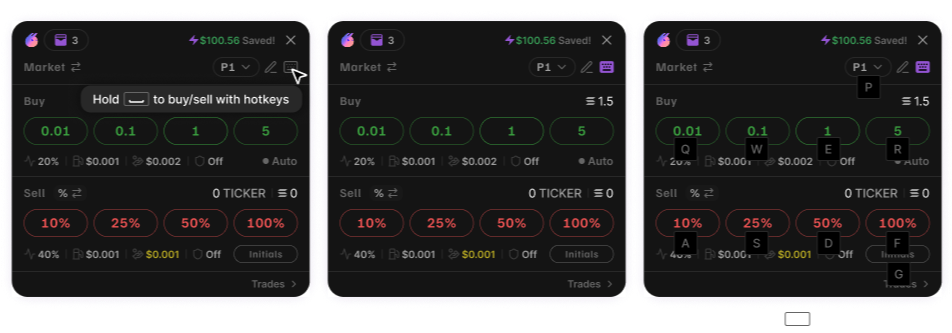
Hotkeys
Execute trades faster using keyboard shortcuts inside the Instant Trade panel.
Instant Trade Hotkey
Press "I" on a Solana token page to open or close the Instant Trade panel. Opt-in via Settings → Trading; works on Axiom, GMGN, Padre, and DexScreener.
Wallet Quick-Select Hotkeys
Hold Space and press 1–9 to quickly select trading wallets; press several to select more than one.
Wallets & Funds

Multi-Wallet Trading
Trade across multiple wallets in parallel without switching accounts.
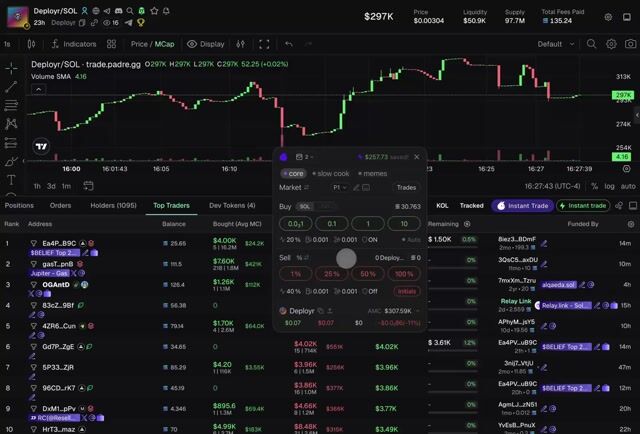
Consolidate & Split Across Wallets
Move assets across your wallets in one flow — consolidate tokens from several wallets into one (or split them out), and consolidate SOL into a single destination wallet.
Split Sell Amount Across Wallets
Split a fixed sell amount evenly across your selected wallets instead of repeating it per wallet (SOL and USDC fixed-amount sells).
Trading Wallet Groups
Create and manage trading wallet groups, then select one or multiple to trade with in the trading panel.
Token Balance Per Wallet
See your token balance per wallet directly in the wallet selector.
One click to send All
- Send all your assets in one click - Send to multiple recipients in one click
Archive Wallets
Hide wallets you don't actively trade to keep dropdowns clean — restore them anytime from the side panel.
Keep WSOL Account Open
Toggle Trading Settings → Advanced to keep your WSOL account open after trades instead of unwrapping to SOL — a rolling WSOL balance makes frequent swaps faster.
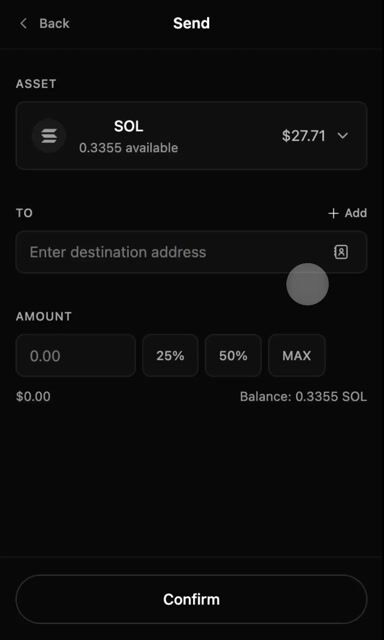
Recent Recipients on Transfer
Resend to addresses you've used before, directly from the transfer form.
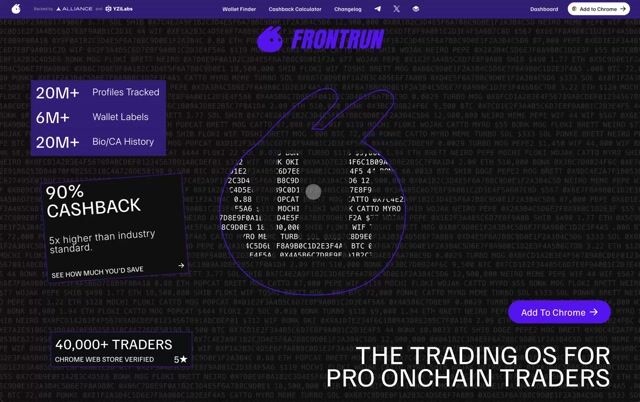
Public Wallets
Display your public wallets as Linked Wallets on your X profile — manage visibility in your Account Dashboard on frontrun.pro.
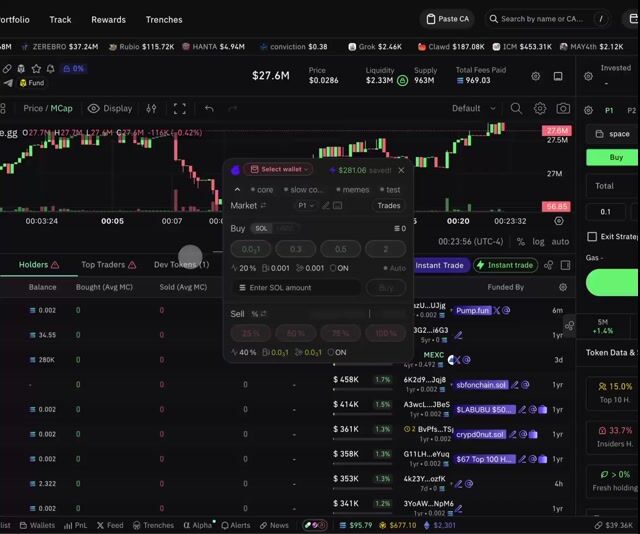
Expandable Wallet Groups
Wallet groups expand and wrap inside the trading panel, so they're easier to view and switch between.
Token Incinerator
Burn unwanted tokens and reclaim rent SOL by closing their token accounts. Experimental — review each token first; closed accounts can't be recovered.
Track PnL
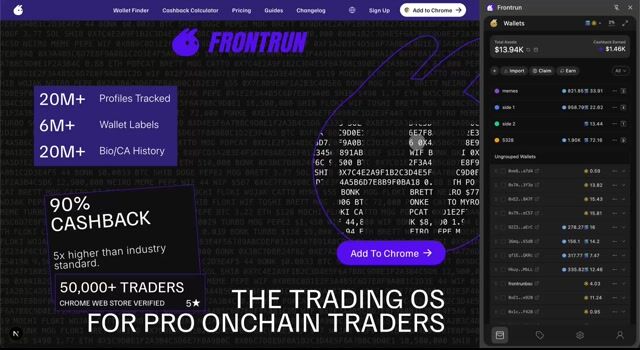
PnL Calendar
View daily realized PnL by month, switch between USD and SOL, and open the calendar directly from the side panel.
Lifetime PnL Stats
View your total PnL across open and closed trades, updated live.
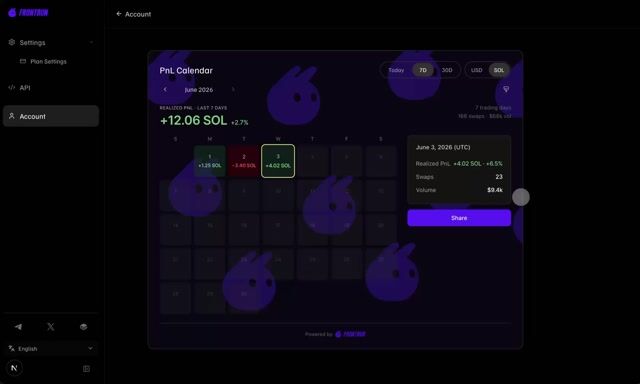
Share Your PnL Calendar
Share your PnL calendar as an image, with customizable backgrounds.
Net-of-fees PnL toggle
Read position PnL net of transaction fees (matching GMGN/Solscan). Toggle off in Settings → Trading → Advanced for gross PnL.
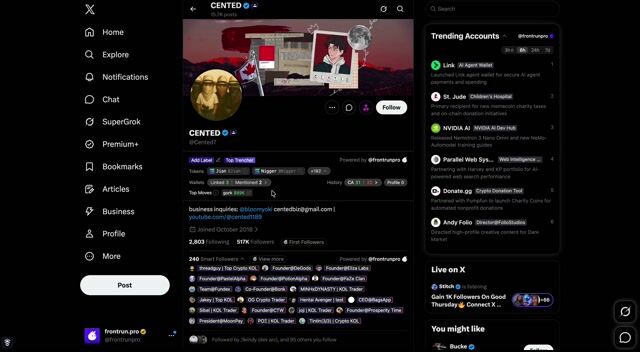
Wallet Share Cards
Share any wallet's 7D PnL, win rate, balance, swaps and Top Holdings — from wallet pages or X profiles.
Reset PnL
Reset your profit/loss tracking from Trading Settings and start fresh.
Cashback & Rewards
Trading Fees
How Frontrun's trading fees work — a flat 0.1% for a limited period, with no extra fee for TURBO.
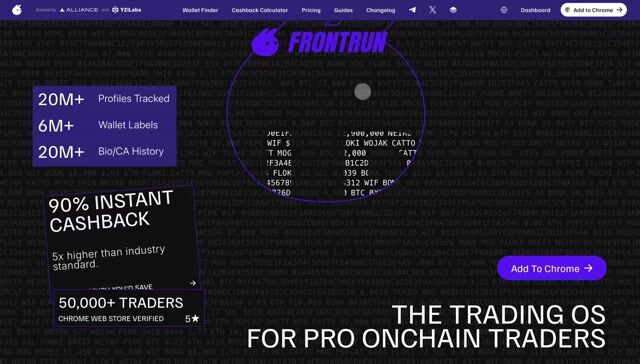
Manual Cashback Claim Option
Opt in at frontrun.pro/dashboard/rewards to claim cashback manually instead of receiving it instantly — fees are unchanged.
Unified Claim Button
Rent reclaim and pump cashback combined into one button, with per-wallet breakdown on hover.
Cashback → Premium Credits
Earn 90% of your trading fees back — take it in SOL, or redeem it as subscription credits (with a 30% bonus) toward your Frontrun Premium plan.
Platforms
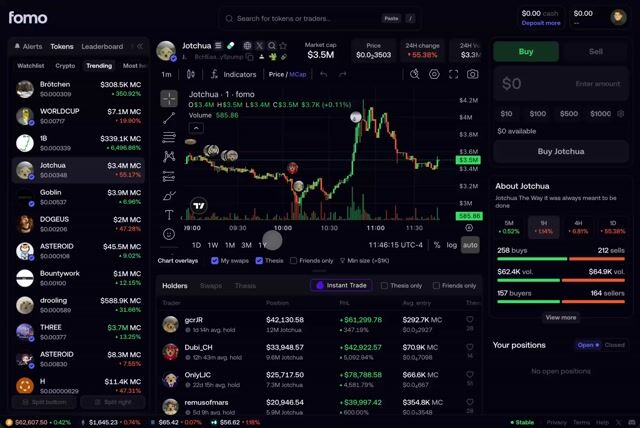
Trading on fomo.family
Trade Solana tokens directly from fomo.family token pages.
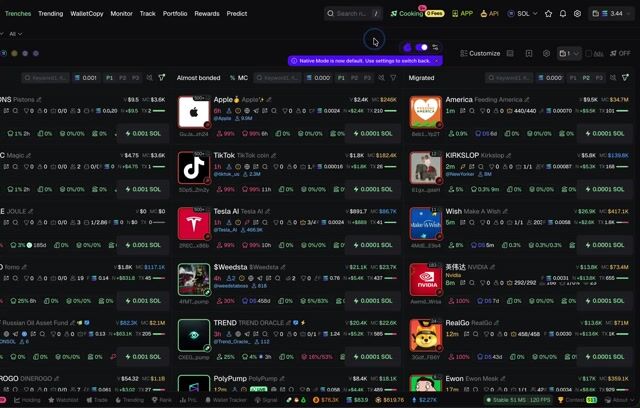
QuickBuy on GMGN Wallet Tracker
Use Frontrun QuickBuy straight from GMGN's Wallet Tracker sidebar.
Quick Buy on Axiom Search
Buy through Frontrun directly from Axiom Search results. Toggle via Trading Settings → Quick Buy in Search.
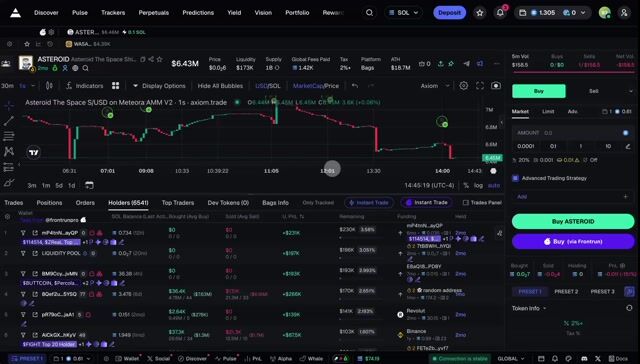
Axiom Favorites
Open your favorites settings from the bunny / gear icon on Axiom.
Sell Tokens from Akbot, TradeWiz & More
Turn on Consolidate Token Accounts in Trading Settings to sell tokens bought through Akbot, TradeWiz and similar bots — with 90%+ lower fees and TP/SL support.
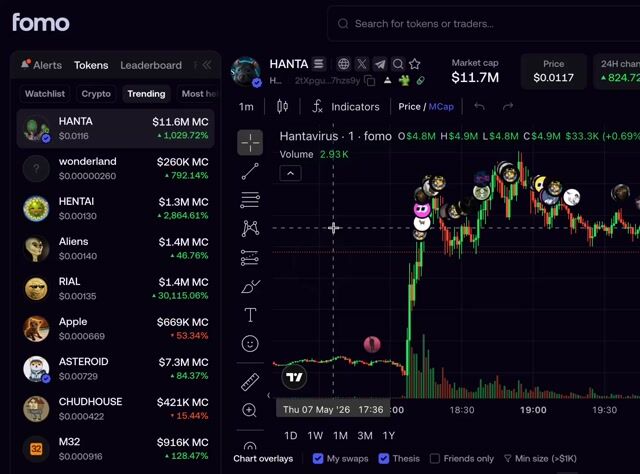
Platform Jump Links
Use Axiom, GMGN and Padre quick-jump icons on pump.fun and fomo.family token pages to open the same coin on supported trading platforms.
Chains
BNB Chain Trading
Trade BNB Chain (BSC) tokens directly from Frontrun with the same multi-wallet flow as Solana.
TON Trading (Beta)
Trade TON tokens on DexScreener from Frontrun — bridge SOL to TON in-app, then trade with the same fast flow (beta).
How to Bridge SOL to TON in 2 Minutes
Bridge SOL to TON inside the Frontrun extension in 60–90 seconds, then trade TON memecoins on DexScreener — no separate bridge site, no addresses to paste.
Customization
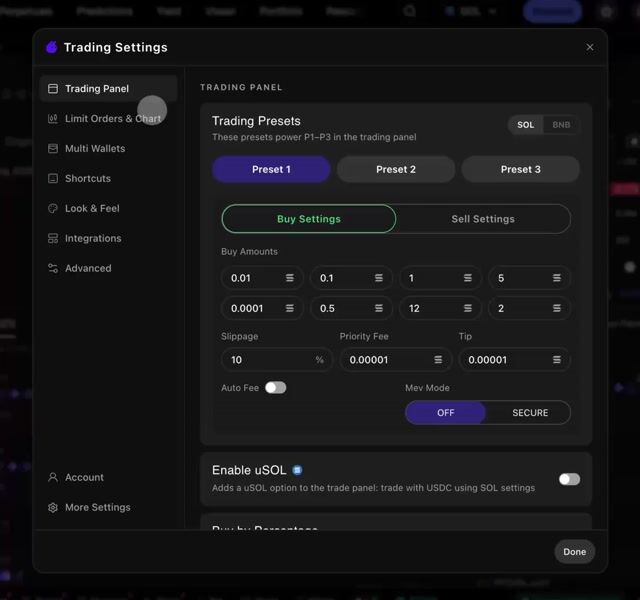
Custom panel background colors
Personalize your trading panel with solid-color backgrounds, plus a cleaner live preview when adjusting Look & Feel settings.
Hotkey Modifier
Pick your hotkey modifier: None, Space, Shift, or Option/Alt.
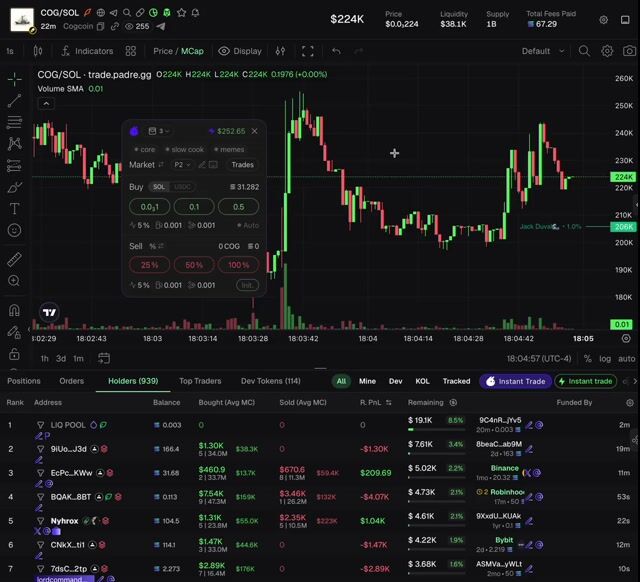
Resizable Trading Panel
Drag any edge of the trading panel to resize it; the buy/sell buttons scale with the panel width.
Setup & Help
How to update the Chrome extension
Update to the latest version in just a few clicks.
How to find your version number
Check which version you’re on directly in the extension
How to view Axiom side-by-side on Arc browser
Click a label, split the view, trade without switching tabs
Restrict Site Access
Limit Frontrun to specific sites from chrome://extensions — add the required domains under “On specific sites.”
View Translations on GMGN
See Chinese → English token name and symbol translations automatically on the GMGN BSC page.
Fix Login Issues
Can't log in? Check your Chrome version, clear the relevant cookies, and re-authenticate.
Fix Frequent Logins
Asked to log in repeatedly? Allow Frontrun's cookies in chrome://settings/cookies so your session persists.

Fix Trading Issues
Trading panel unresponsive or trades not executing? Toggle the extension off and on, then work through the checks.
Fix Slow Loading
Diagnose slow loads by checking the api.frontrun.pro/health request timing in Chrome DevTools.
Export Console Logs
Open the extension, Inspect, and export console logs to share with support when reporting an issue.